
Securing your future - protecting you online today, and your cash flow needs tomorrow
Confused? How does online security relate to future financial cash flow security? Let me explain...
In my role as a financial advisor, my goal is to find the best path to financial success and security for all my clients. Part of that means not only managing portfolios, dealing with tax projections, and consulting on estate planning (among much more), but also educating clients on how to keep them and their families "secure." That word "secure" can mean a lot of different things, of course, but in this context, I am referring to a process that can help you stay safer online with robust safety, security and privacy while at the same time creating a framework for a child or other future caretaker to help with financial management (e.g. paying bills, etc) at a later time.
Experiences learned through real life
In the past, I've had friends and family who have been, let us say, "inconvenienced" by following poor online security protocols. Re-using passwords, not using secure methods of communication, and lack of attention to smart online hygiene lead to a good probability of there being a problem down the line. So, step one is to make sure your online practices are robust, but also not too complex to dissuade you from undertaking some different online habits.
However, as 62% of the clients I deal with are retired and (sorry!) aging, I want to help them create a system that is not only robust and secure, but something that caretakers can use in the future if necessary.
I've learned first-hand from my family that aging can lead to diminished mental capacity and that seniors need to have a game plan in place for who's going to pay their bills before the actual need for that. As someone who has stepped in for 2 aging parents to help with finances, I have experience with what works and what should be done to prepare, and have prepared some simple, actionable steps that you can take now to set up good online security and increased privacy, as well as lay the groundwork for a future caretaker that may need to step in and manage your affairs if you're unable to do so.
So, let me take a moment first to give you the overview of my recommendations and what they seek to accomplish:
Step 1: Set up a separate email for finances, bills, and other critical communication
This is something I did for myself several months ago and it's working out great. And if I'd thought of this years ago it would have saved me some serious headaches when working on my parents' finances. Here are the reasons why I strongly suggest taking this step, regardless of your age:
Immediate benefits:
- Having a separate encrypted email account ensures that your sensitive information stays private. It can't be scanned by Google/Gmail and the like, can't be read by your employer, or otherwise used or read by any third-party.
- Knowing that this secure email is what you have on file with your financial institutions, you'll be immediately suspect if you receive anything from "your bank" at your regular email address. Possible phishing email? A Red flag goes up already!
- Important, actionable email doesn't get buried in with the rest of the email clutter that we all get these days. No ads, spam, political ads, nothing to distract from the important communications that often must be acted upon in short order.
Longer-term benefits:
- If there becomes a time where you are mentally or physically unable to manage paying your bills or your affairs, having a separate account that a caregiver or agent can login to without having to deal with the spam and clutter not only helps them tremendously, but keeps the rest of your matters private.
Even Clark Howard is a fan of this strategy (from https://bit.ly/4tEwoKK )
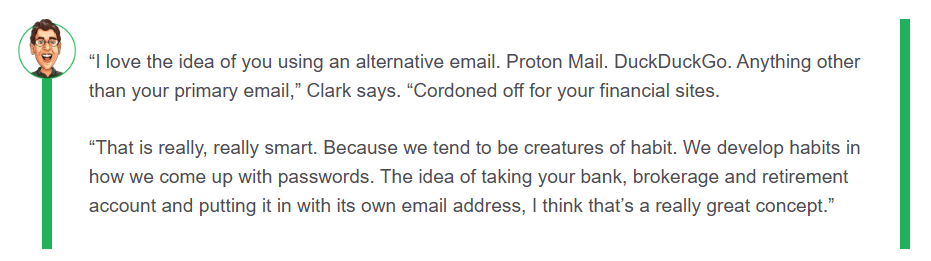
And PCWorld recently had an article on why encrypted email is the way to go https://bit.ly/3ZpTIhh
I'm going to get to the how-to of all this below, but before I do that, let's get to another even more-important task:
Step 2: Start using a dedicated, technology-based password manager
I've used a few password managers over the years, and have settled on a robust system that works great for not only me but the whole family as well. I'll get to the details below, but let me caution you on any other methods that you may already be using:
- Paper/books/(napkins?) - Sure, super secure but terribly unhelpful if you need a password on the go, if someone else needs to access your login and doesn't have access to that physical document, or if it gets lost, destroyed or obfuscated. And you really can't create ultra-long, secure passwords because I KNOW you're not going to type "hapN7*Ei2nAsZ#$4" every time you want to log in to a website!
- Device- or browser-based managers - a step in the right direction but now you're locked into an ecosystem. Ultimately, Apple or Chrome or whatever you're using controls the data, not you. And if you want to branch out to other devices or share the information with someone not on the same platform, it's often not possible. More on that (there are some great points here!) at https://bit.ly/4rdUNoU
- Using a same or similar password across many websites - Danger! When you put any information on the web these days you need to go in with the assumption that your data will someday be jeopardized. Using the same userid/password on multiple sites is not just a risk but a probability that those credentials will be compromised, and then that same combination will be attempted on thousands of sites, giving a potential gold mine to someone you don't want in your accounts. I've seen it happen to someone I know, and it's really not any fun, believe me.
- Passkeys are great alternatives to passwords, but locking a passkey to a specific browser or device is neither helpful nor convenient. Store passkeys in a dedicated manager you can use across platforms. Not sure what passkeys are or why you should use them? Read here https://bit.ly/4akF8g9
Using a separate technology-based password manager dedicated solely to that task yields not only better security and privacy, but can actually make your life easier as you don't have to go to the book, or wait until you get home, or come up with a random password on your own.
AND, when you use a dedicated technology solution, any future caregiver or agent will be able to access this data wherever they're located. Very convenient if, say, my, er, someone's dad is in Florida and they're in Connecticut paying the bills.
If you need a little more convincing, feel free to browse this AARP article at https://bit.ly/4r3KWSa
Don't be scared of the unfamiliar!
The last thing I want is for anyone to avoid being more secure simply because they're unfamiliar with the process and don't understand how it works, or they think it will be inconvenient. So my goal now is to walk you through how it works so you can see how seamlessly and effortlessly it can fit in with your online access routine.
Why Proton?
There are many services on the internet that you can use, but I'm going to focus on Proton for a few reasons. First, I have experience with it! But the reason I chose Proton over other providers is that they put security and privacy first in all products they offer, and that every piece of data you provide them is end-to-end encrypted which means that nobody can access that data except you (not even Proton!) As well, their code is all open-source and they're based in Switzerland who have very robust privacy laws. By-and-large, security experts find that Proton offers excellent protections while still being accessible and convenient, and I hope you find the same. But feel free to look around for other solutions if you like. The important thing is to find something that you'll use.
I will tell you in all honesty that I really find these services to be really well designed. Clean layout, quick and responsive, and continually improving. I actually kind of regret that I'm not using Mail as my primary mail service! But I digress...
Another reason I suggest trying Proton services is that they offer all their basic services at no cost. Password managers, email, and several others can be utilized with no financial commitment on your part. There are certainly opportunities to upgrade to more robust services if you choose, but the basic free options still provide great solutions for their niches (more on that later).
As well, their solutions work across all the different platforms and browsers, so you're not locked into Google, Apple, Microsoft, Chrome, Brave, DuckDuckGo or any other solution, browser or entity. This keeps your data and privacy away from these corporations that make money off of your own information, and lets you or others on different platforms interface with your information as you may require in the future.
With the following easy steps, you will accomplish the following:
- Set up a private, encrypted email account that no third-party can read and that you can share with someone who may need to manage your affairs (without having to share everything!)
- Consolidate your passwords into a system that you can access from any device, anywhere, that you can also share with someone who may need to manage your affairs (should you choose).
- Employ a solution that provides robust, secure passwords when requested, while also checking for weak and/or reused passwords.
- Set up a two-factor authenticator (2FA) that you can use on any device, on any platform (optional but we'll address below).
Sounds like a lot, but let's let technology do the heavy lifting and proceed!
Step 1: Proton Mail - the foundation
To start with any of the Proton services, you need one sign-up for the Proton account suite. Since your Proton user id is based off a Proton email address, that's a great place to start, even if your main goal is password management. If you don't think you need or want the email account (but you should use it!), still do this as it's an easy way to get your Proton ID established and it costs nothing.
When to start the signup process, you'll select your username and what tier email service you want. I use the free account and it works great, and you can always upgrade later so I suggest you start with free for now. Things to consider before you sign up:
- If you're looking for the most robust security, it is most secure to NOT set up the account with the same username you use on another service, and not to use your actual name or any personally identifiable information as part of the username. Remember, this is just a 'business' account, so you don't need to worry about personality here.
- When setting up your password, instead of one of those random strings of 20 characters that you'll never remember, I suggest making a memorable sentence. "Peter-piper-picked-a-pair-of-peppers-99" or "My.Very.Educated.Mother.Just.Served.Us.9.Pickles" or family member names like "Bob&Judy&John&Albert.123", or whatever. Just something long and easily memorable is great. You won't actually need to use this password much at all going forward (so don't worry about having to type this out every time, you can use a PIN number or biometrics once you've logged in the first time), but it is CRITICAL that you store this safely as without it NOBODY (not even Proton) can access your account. It is quite literally the key to the kingdom. And it really does need to be different from any other password that you're currently using. That's non-negotiable.
Ok, so maybe you're not excited about setting up yet another email account to have to check. Not to worry! If you have an email in your Proton in-box that has been unopened for 24 hours, you can set up the option to get a notification email at your primary email account! So no need to check it regularly if you don't care to as you'll get notified when there's something to review!
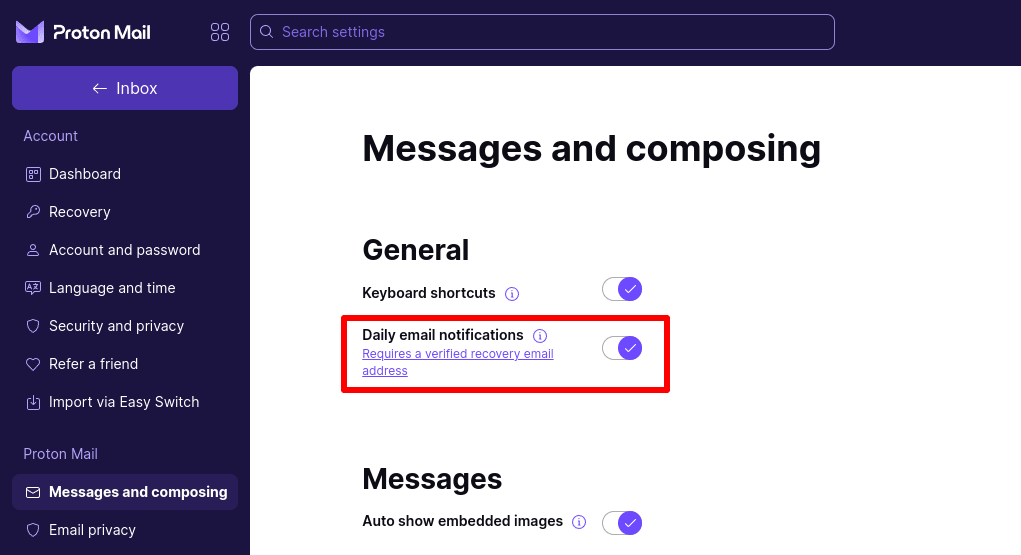
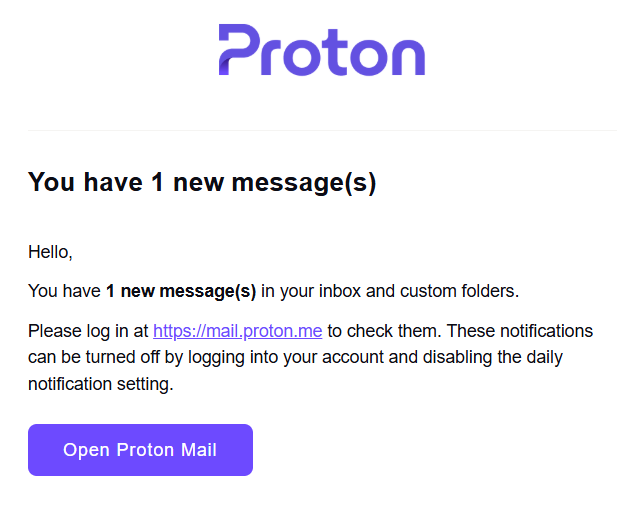
Once I've set that up, I get this when I have a new email:
Another really nice security feature is how it handles links in emails - Proton provides a descriptive alert any time you click a link in a Proton email. As an example, I have my Proton email as my contact email for Experian, so when I got an email from them to review something, this is what came up when I clicked on that link:
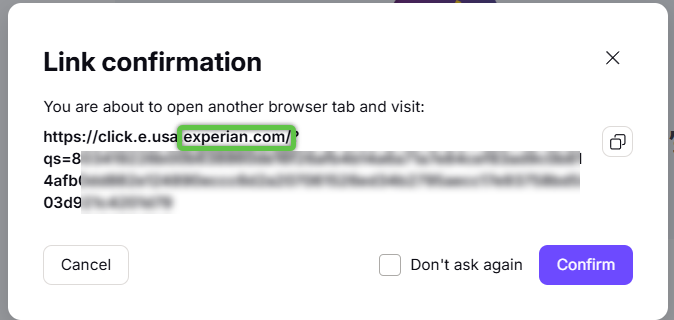
As you can see, it's giving me confidence that the domain it's trying to send me to is, in fact, Experian.com, and not some site I'd rather not visit. Now, having some defenses like Bitdefender or a good malware-safe DNS help protect me even more, but this is a great idea that Proton uses that I'd love to see other services provide (maybe some do?)
When you go to sign up for the email address, remember that the free option is all you you need at this point (that's the level I use personally). Feel free to choose a higher level if you wish, but you can always upgrade later, and I think there are other service(s) that would be a better value if you wish to spend a little money on upgrades. I'll speak more on that later. But for now you can get more information and sign up at https://proton.me/mail You won't even be prompted for credit card or any other personal information!
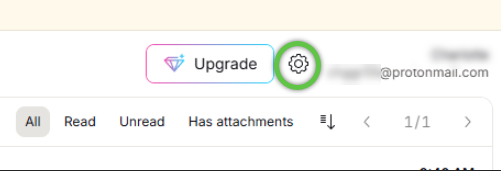
Once you're in the app, find the settings and we're going to make a few quick changes. As you're probably aware, on a browser it's in the right hand top corner with the gear icon
My first recommendation is to set up recovery email and/or mobile numbers. From the settings screen, click on "Recovery" then you can enter the option or options you want to use. (The email step is required if you want to get reminder emails when you receive email in Proton.)
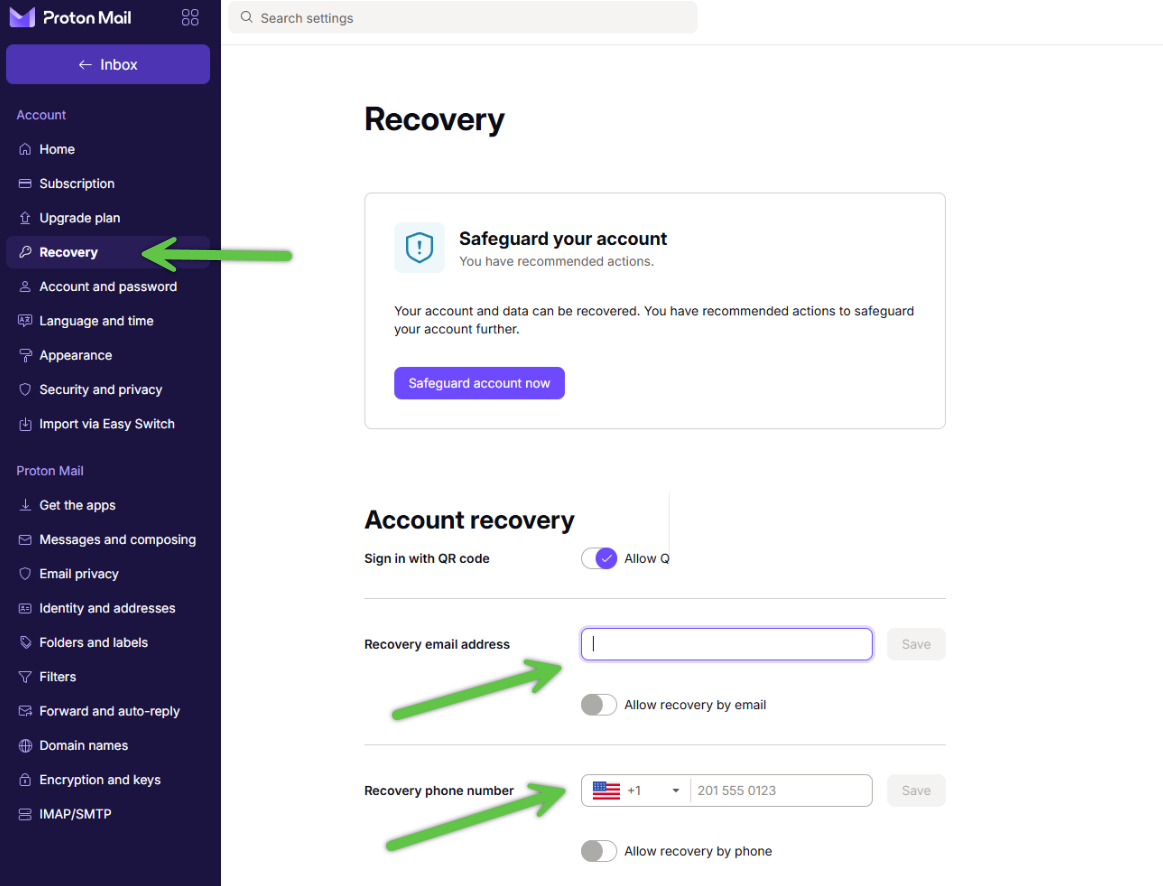
Once you've set up your recovery email address, you can now set up your daily email alert as I showed you above:
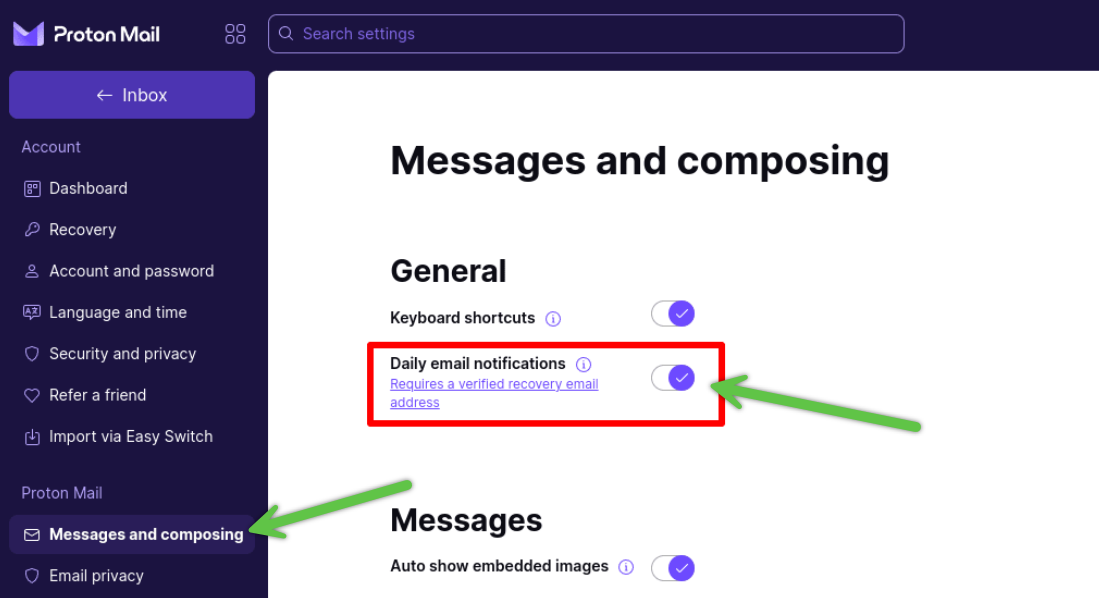
The other change I suggest for maximum security is to add two-factor authentication (2FA). I'm going to show you where it is here, but I'm addressing 2FA down in Step 3 below.
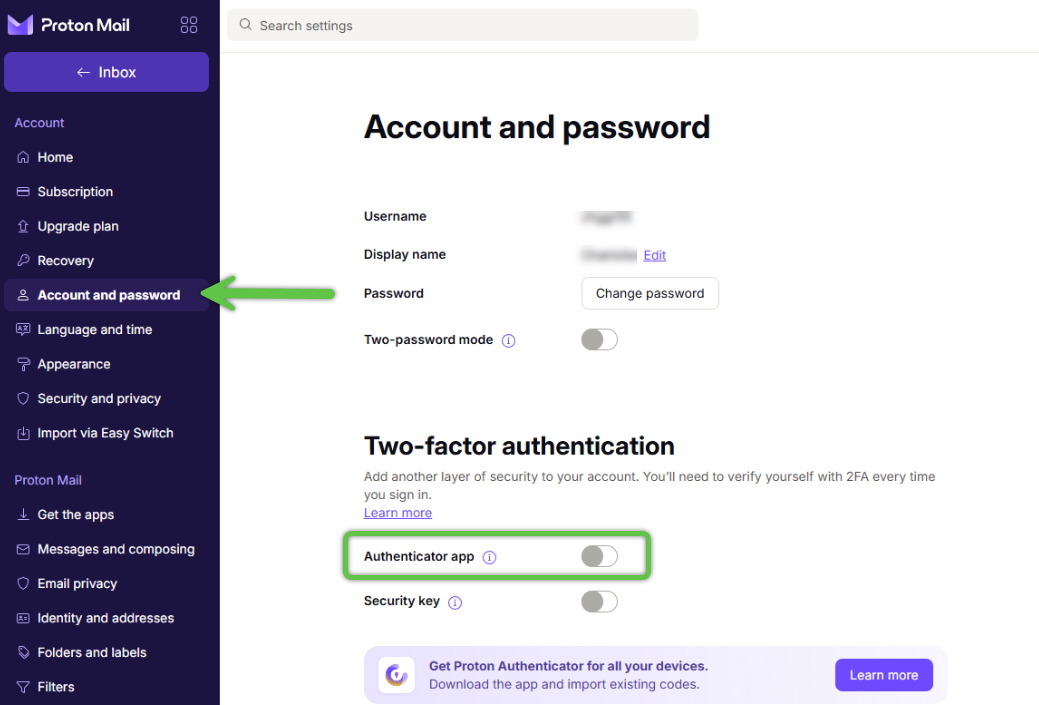
Now that you've set up your Proton username, let's get to the meat of both online security and convenience:
Step 2: Proton Pass - the password management solution
Now that you have your Proton ID via the Proton Mail setup, you can start to set up your Proton Pass (password manager). Before we do that, though, let me walk you through how it works and how seamless it is once it's set up (which is also very easy).
For these illustrations, I'm going to assume you've never used any password management through an alternative service or browser, but if you already have another solution, you can import your existing logins into Proton Pass. But, for now, let's assume your password manager is a scribbled-on napkin. (And if you're using Chrome browser or iPhone archive as your password manager it's worth reading https://bit.ly/3O5AkDV for some thoughts...)
NOTE: before we get into how to get set up, let me just show you how it works once you set it up:
While you're enrolling in Proton Pass, if you're using a browser (e.g. Chrome, Edge, Brave, Opera...) on a PC or Mac, you'll be prompted to install an extension on your browser. It will live up in the corner with any other extensions you may have, and while the extension is installed, it will take care of the login process. In this image, you can see the purple diamond icon of Proton Pass (currently locked; we'll get to that)
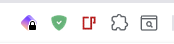
If you prefer an Apple, Android or other device, no problem there either. Each platform has a Proton Pass app you can use to manage your passwords and password access. But for the purposes of this walkthrough this is all shown on a Windows Chrome browser although the process will be similar on other platforms.
Setting up a new login on a website
Here's the New Haven Register's site where we'll can create an account as an example. In the email address you would enter your own (I entered the "myaddress@email.com" but you would use your own or the default Proton Mail option if you choose) and when you tab down to the password line, it automatically suggests a unique gobbledygook password for the login which you can simply click on to accept it. If the website has certain restrictions on length or characters that the suggested password doesn't satisfy, just click the gear icon and make any adjustments.
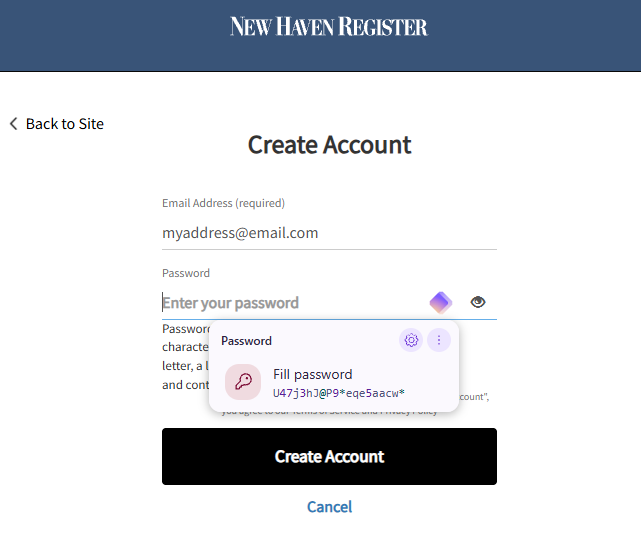
Once you've generated and selected a password for your new login, you will then be asked by Proton if you want to save the login credentials (note below that the realm.hearstnp.com URL is the website for registering with the New Haven Register) and, of course, you'll click ADD.
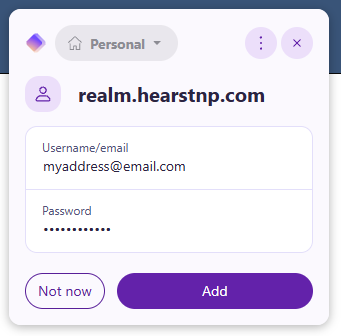
Assuming you click "add," that login information is now stored in Proton Pass! Done!
But what if you have to update your password at some point? Again, easy! If you change a password at any point and Proton Pass sees that you've entered a password different than what it has stored, it will ask you if you want to either update your existing password or create a new login (for example, if you share computers with someone and you each have your own login)
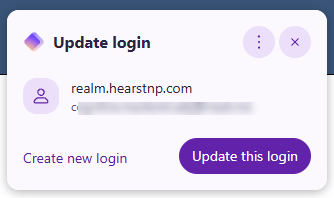
Logging in with stored credentials
Next time you go to log in, you'll now be greeted with a different dropdown, as your information is already known to Proton: 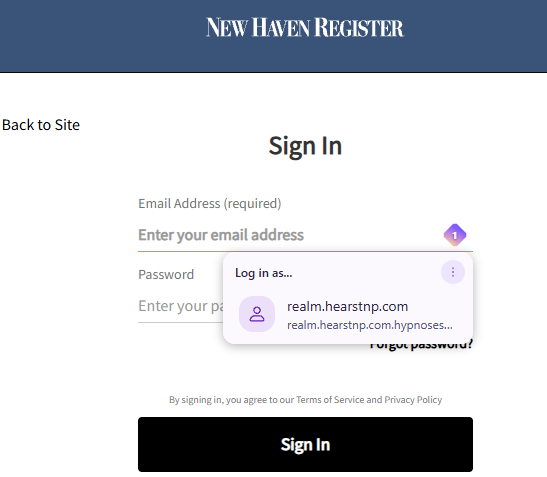
Simply click on that login option and your information will be used to log you in. Can't be easier.
In the case that you have multiple logins for the same site, that's easy as well. For example, on this site I have three IDs stored (note the "3" in the diamond), and, by using the dropdown, I can select the one I want for this login:
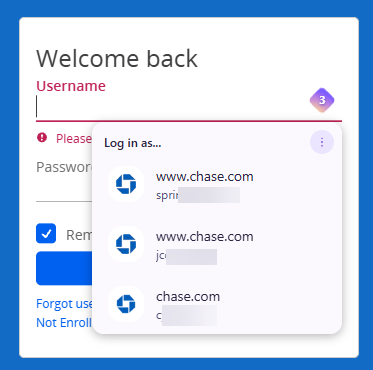
I'd say that the prefill works great most of the time, but sadly not every time. That's still not a problem, just an extra step.
If you end up on a page that doesn't automatically let you fill in your credentials, you can click on that purple diamond on the top right of your browser (the extension icon) and it will pull up a list of all the logins and other stored information that relates to the site you're on. You can simply click on either the username or password and it will say "copied to clipboard" then you can go back to the login screen and paste it in. For example, if for some reason my password for my tax planning software wasn't filling in, I could open up Proton Pass by clicking on that purple diamond, type in the site name in the search bar, and then click on the password and it would copy it to the clipboard where I can then paste it in to the webpage.
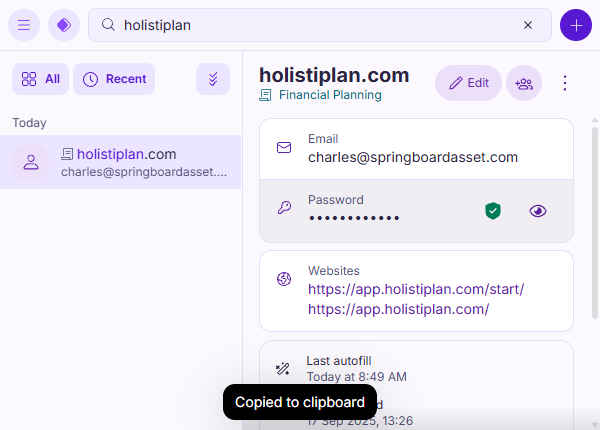
Notice on this little popup that there's some other interesting (to me at least!) information, like the date the login was created, the last time the autofill was used, and you can even create different vaults if you want to organize your passwords, but that's totally optional (but a great feature which I'll address again later).
I'm on a PC 95% of the time I'd ever log in to anything, but I do have the Proton Pass app set up on my Android Pixel and Chromebook as well. And, if I wanted to log in to, say, the USPS site on my phone, then when I go to that website I get a box just above my phone's keyboard (note the yellow box below) that I can then click on the login I want and it will prefill on the page I'm visiting:
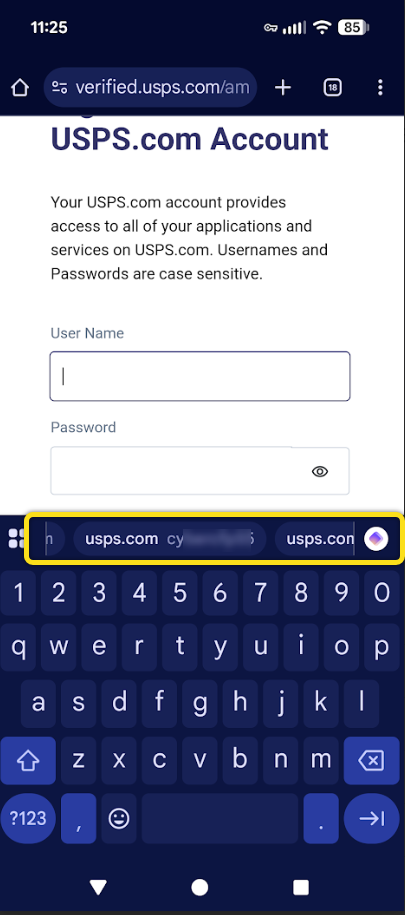
Although this example uses a webpage, apps work in a very similar way.
Now, by no means is Proton the only very good password manager available. I encourage you to find the one that fits your situation best. I like Proton's mission and I've been happy with their products, so I am happy to recommend it. But whatever you decide to do, I really do hope you use a good, reputable password manager.
If you want to get started with Proton Pass, they have a robust free option, or you can upgrade to other plans. Feel free to sign up with the free option and give it a try alongside your current method to get familiar.
The easiest way to add Proton Pass to your Proton ecosystem is just to be in Proton Mail and click the applications icon on the top left. Almost no other steps you need to take!
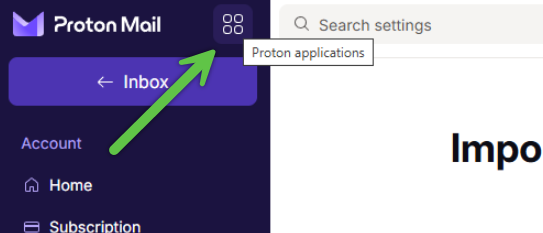
Step 2a - Upgrading Proton Pass - optional
I personally use the Pass Family which helps me manage everything for my brood, but I think for many reading this, you may want to consider the Pass Plus option once you've had a chance to explore how Pass works and once you're comfortable with the basics. Now, I'm somewhat reluctant to try and push an upsell but I think there are some excellent features that the Plus level offers that offer an easy, robust extra level of security and privacy. To highlight two:
Unlimited email aliases
You know how you when you sign up for a newsletter or even give a company your email address and now it seems you're getting email from all sorts of random places? Aliases help fix that problem. Let me show you how I recently used this feature in real life. I recently compared insurance quotes online but really didn't want the follow-up. So, I created an email alias. Now, The Hartford doesn't have my "actual" email address, they have an address I used specifically for this one-use case.
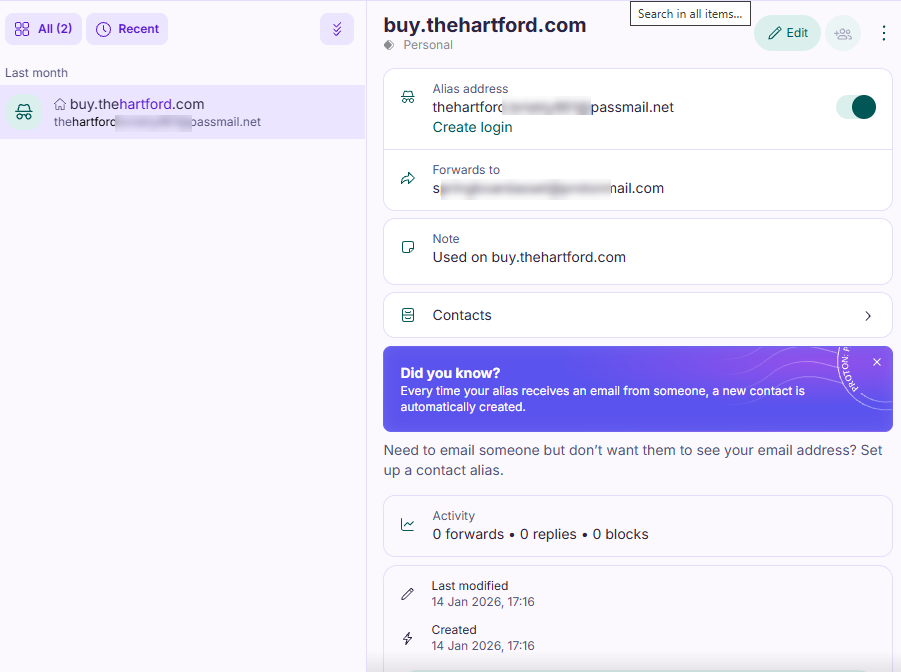
Now, when I'm done communicating with this company, I can trash the alias and will never have to hear from them again! As well, if their data gets hacked, my "real" address isn't linked to anything. And databrokers can't connect the dots between data sources when contact information doesn't match, so having that unique email address keeps this request out of those digital profiles that databrokers build.
Secure vault sharing
I have found some great use-case scenarios for this, and - especially for my senior clients - I love how this can protect my clients' finances without divulging too much privacy. Hear me out.
Too many times in my family I've seen cases where aging has affected the ability for a person or couple to manage their financial affairs. I've had to step in and pay bills for my father after he suffered cognitive decline, as an example. And the use-case I can see this adding a huge amount of relief for a caretaking family would be this:
Let's say I have a single retiree Humphrey that lives alone and is healthy and cognitively in good shape. Humphrey has set up his password manager and wants to give access to his son to access his financial accounts, but wants to retain some privacy and doesn't want to give out all the data in that password manager. Well, Humphrey can create a vault within Proton Pass and assign his financial logins to that. His bank, credit card, electric company, those kinds of items. Now, Humphrey can share just that vault with his son, and do so securely, and if Humphrey changes a password, his vault stores that automatically so his son has it instantly as well. Humphrey can add to it, change it, or revoke access at any time. If he wants anyone he shares with to be able to make changes, he can grant those privileges as well.
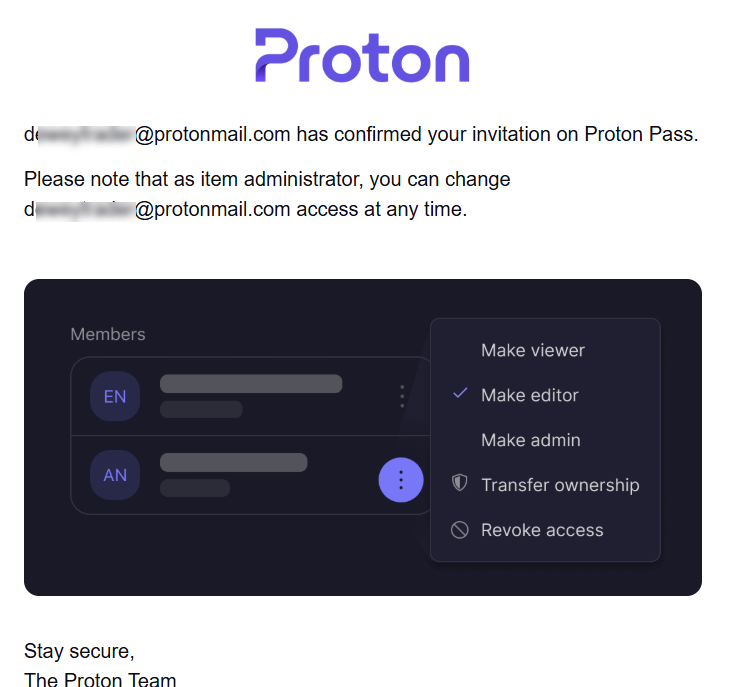
As of the time of this writing, the Pass upgrade is a buck less per month than the Mail upgrade, and I think its features at that level are superior to what the Mail upgrade offers, but you do what you're comfortable with. I use the vault sharing and email aliases extensively and find a lot of value in those.
But free is great too!
If you're just looking for a secure, robust way to use a great password manager simply visit https://proton.me/pass and integrate it in to your routine. No credit card necessary. Try before you buy, no commitment. Once you get started, it will become very familiar very quickly.
If, however, you do decide to upgrade to Plus, Family or any paid subscription, you can use the following link. I admit, I'm slightly reluctant to share it as it smacks of conflict of interest, but as it does offer value to anyone using it I'll put this referral link out there. It provides a 14-day trial and if you subscribe they credit you $20 on your account. That being said, I also get a $20 credit but that's not why I'm sharing this. So, to offset that, any time I get a $20 credit I'll make a $30 charitable donation. This isn't about benefitting me, it's about providing you the best security and value. The referral link is at https://springboardasset.link/ProtonPass
The hard part is done!
Congratulations on taking a step towards a more secure, private and convenient solution that benefits both you and your family. I hope you found the instructions and illustrations helpful, and if you have comments please do share. You now have everything you need for a great encrypted email solution and a robust password manager. But if you want to be even MORE secure, it's time to talk...
Step 3: Two-factor authentication (2FA) - optional but recommended
Many websites have some version of 2FA you can use but a lot are still using text messages or emailed codes. For the highest level of security (and convenience, in my opinion) a stand-alone 2FA solution is preferable. This adds one more layer of security as now the three layers are:
- Who you are (user id/login)
- Something you know (your password)
- Something you have (your authenticator) - now this can be a 2FA app, phone (e.g. SMS), or a security key like a Yubikey
It's not unlikely that you're already using an authentication app such as Google Authenticator, but even if you are, I want to outline two potential ways you can incorporate 2FA into your security. Yes, text/SMS still is an option, but it's slow, manual, and less secure than standalone 2FA.
Option 1 - standalone app
I used Google Authenticator for years but I recently switched to the Proton Authenticator for convenience. Since I use my PC 95% of the time I'm doing anything that would require authentication, whenever I needed to enter a code I would have to find my phone, pull up the authenticator, find the site I'm using, and then read the code off the phone and enter it in the computer. Not awful, but I found a MUCH easier solution (for me).
The reason I switched to the Proton Authenticator is that it works on ALL platforms, and I can sync the codes between all my devices. So, now I can click on my the app in Windows, and Ctrl-V the code into the browser. Two quick steps and I don't have to walk around the house to find my phone.
Regardless of what authenticator you use, they function the same. So, how does it work? First, the website has to use a 2FA authentication token, and not all do. But if you have the option, the first step is to have the website generate a code for you. Here's an example from Best Buy's website:
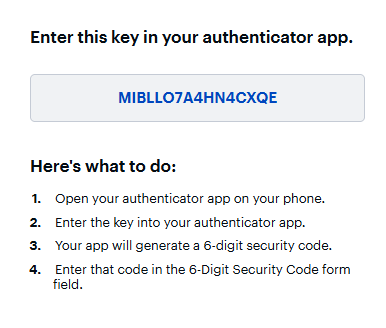
Then you open up the Authenticator app, click "add" and then paste that long code in to where it says "secret key". Then, that will generate a 6-digit code which you'll paste back in the website to confirm the link, and it's all set up! The next time you log in, you'll be asked for the 6-digit code which you grab from the app and you're done!
See more demos and download at https://proton.me/authenticator
And if you've installed an authenticator app, don't forget to update Proton's login to 2FA per the Step 1 instructions above.
Option 2 - integrate directly with Proton Pass
Before I get too far into this, these options only apply to paid versions of Proton Pass, so if you don't need or care to upgrade that's fine, the above option works swimmingly. And there are some pros and cons to this integration which I'll address below, but first here's how it works.
Just as the secret key works in the option above, there's a way to enter the secret key directly into your Proton Pass login and have that 2FA filled in each time without having to open a separate app. From the screen above, I'd copy the secret key, then I'd open up the website in Proton Pass and click on "edit" on the entry for this website.
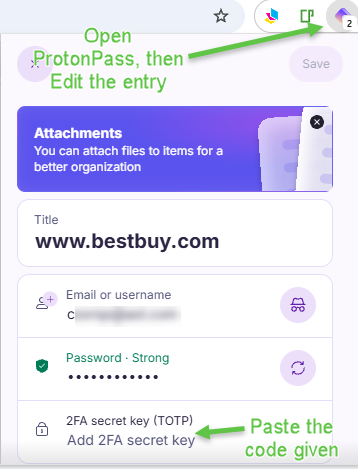
After I paste the key, that field reverts to the 6-digit 2FA code. But wait - it gets easier! Once you've integrated the secret key to the login, the next time you login and are prompted, Proton Pass will let you click and fill in the 2FA code! No extra app required!
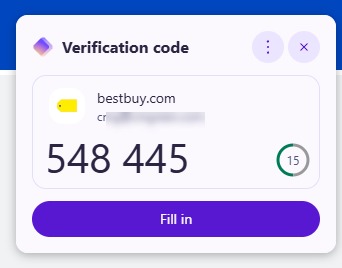
Ok, so this convenience has it's pros and cons. First, the con. Albeit minimal risk, it is a fact that now your password and 2FA code come from the same source. So it's not the same level of security as having a separate app for the code.
That being said, one huge pro is for instances where you might be sharing your vault with someone else who may need to log in from a different location. This could be game-changing from a convenience standpoint. It's frustrating when the code is a text message but the phone that's going to is in a different state. So this is a great use-case scenario that walks the line between extra security and convenience.
Again, this 2nd option is only for paid versions of Proton Pass, so if you're using the free version (which is still great!) you're out of luck on this.
Ask away!
If you made it to the end, congratulations! It is very important to me that everyone stay safe online, so please feel free to ask any questions of me that you have. I won't pretend to be tech support, but maybe you and I can both learn something that will help us all stay more secure in this world of technology.