
Proton Mail - Setting up a separate email for finances, bills, and other critical communication
This is something I did for myself back in late 2025 and it's working out great. And if I'd thought of this years ago it would have saved me some serious headaches when working on my parents' finances. Here are the reasons why I strongly suggest taking this step, regardless of your age:
Immediate benefits:
- Having a separate encrypted email account ensures that your sensitive information stays private. It can't be scanned by Google/Gmail and the like, can't be read by your employer, or otherwise used or read by any third-party.
- Knowing that this secure email is what you have on file with your financial institutions, you'll be immediately suspect if you receive anything from "your bank" at your regular email address. Possible phishing email? A Red flag goes up already!
- Important, actionable email doesn't get buried in with the rest of the email clutter that we all get these days. No ads, spam, political ads, nothing to distract from the important communications that often must be acted upon in short order.
Longer-term benefits:
- If there becomes a time where you are mentally or physically unable to manage paying your bills or your affairs, having a separate account that a caregiver or agent can login to without having to deal with the spam and clutter not only helps them tremendously, but keeps the rest of your matters private.
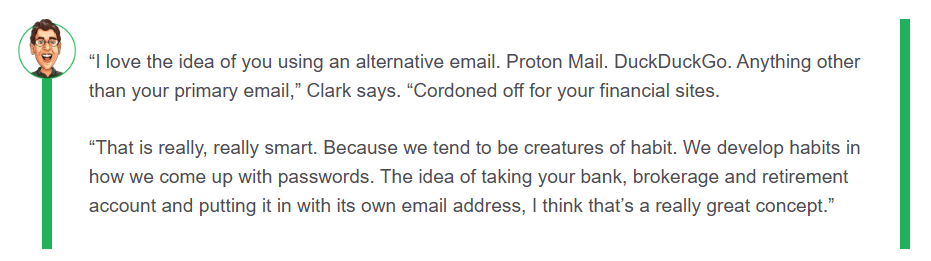
Even Clark Howard is a fan of this strategy (from https://bit.ly/4tEwoKK )
And PCWorld recently had an article on why encrypted email is the way to go https://bit.ly/3ZpTIhh
I'm going to get to the how-to of all this below, but before I do that, let's get to another even more-important task:
To start with any of the Proton services, you need one sign-up for the Proton account suite. Since your Proton user id is based off a Proton email address, that's a great place to start, even if your main goal is password management. If you don't think you need or want the email account (but you should use it!), still do this as it's an easy way to get your Proton ID established and it costs nothing.
When to start the signup process, you'll select your username and what tier email service you want. I use the free account and it works great, and you can always upgrade later so I suggest you start with free for now. Things to consider before you sign up:
- If you're looking for the most robust security, it is most secure to NOT set up the account with the same username you use on another service, and not to use your actual name or any personally identifiable information as part of the username. Remember, this is just a 'business' account, so you don't need to worry about personality here.
- When setting up your password, instead of one of those random strings of 20 characters that you'll never remember, I suggest making a memorable sentence. "Peter-piper-picked-a-pair-of-peppers-99" or "My.Very.Educated.Mother.Just.Served.Us.9.Pickles" or family member names like "Bob&Judy&John&Albert.123", or whatever. Just something long and easily memorable is great. You won't actually need to use this password much at all going forward (so don't worry about having to type this out every time, you can use a PIN number or biometrics once you've logged in the first time), but it is CRITICAL that you store this safely as without it NOBODY (not even Proton) can access your account. It is quite literally the key to the kingdom. And it really does need to be different from any other password that you're currently using. That's non-negotiable.
Quick note - if you're considering upgrading to a paid plan later, I think you're better served using the first tier of Proton Pass versus Proton Mail as it provides unlimited email aliases and costs less.
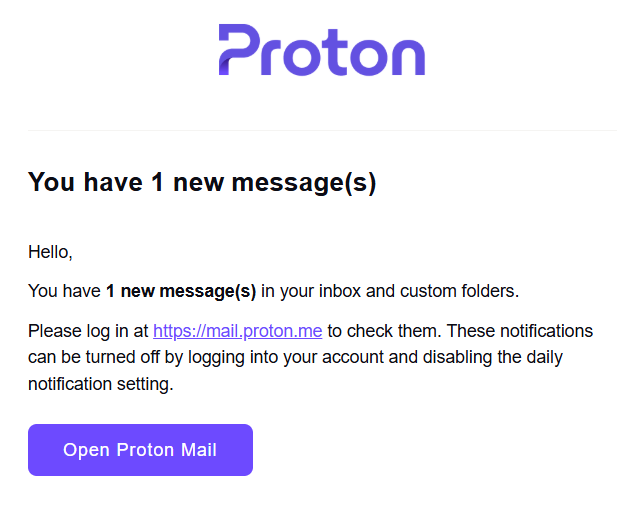
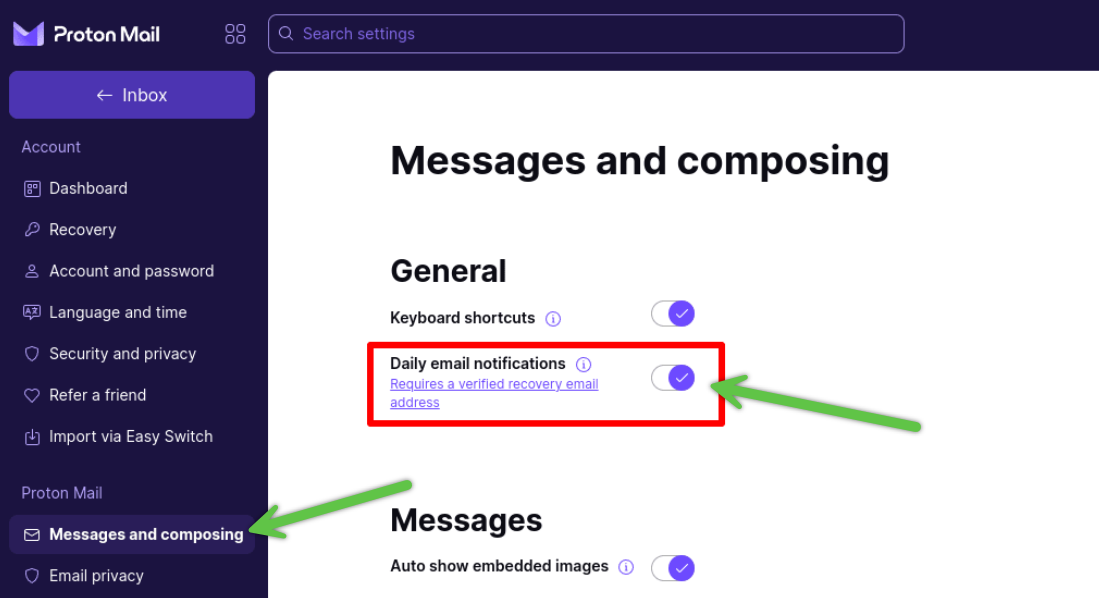
Ok, so maybe you're not excited about setting up yet another email account to have to check. Not to worry! If you have an email in your Proton in-box that has been unopened for 24 hours, you can set up the option to get a notification email at your primary email account! So no need to check it regularly if you don't care to as you'll get notified when there's something to review!
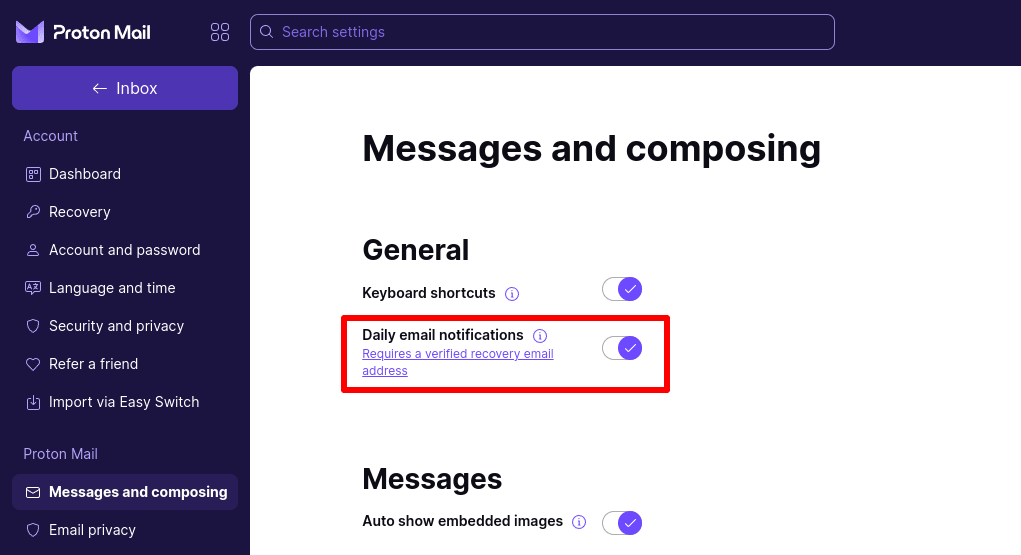
Once I've set that up, I get this when I have a new email:
Another really nice security feature is how it handles links in emails - Proton provides a descriptive alert any time you click a link in a Proton email. As an example, I have my Proton email as my contact email for Experian, so when I got an email from them to review something, this is what came up when I clicked on that link:
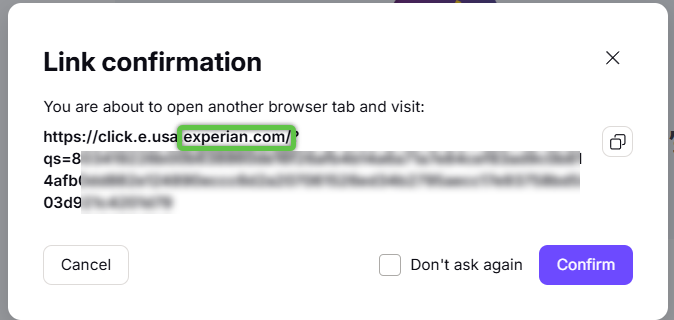
As you can see, it's giving me confidence that the domain it's trying to send me to is, in fact, Experian.com, and not some site I'd rather not visit. Now, having some defenses like Bitdefender or a good malware-safe DNS help protect me even more, but this is a great idea that Proton uses that I'd love to see other services provide (maybe some do?)
When you go to sign up for the email address, remember that the free option is all you you need at this point (that's the level I use personally). Feel free to choose a higher level if you wish, but you can always upgrade later, and I think there are other service(s) that would be a better value if you wish to spend a little money on upgrades. I'll speak more on that later. But for now you can get more information and sign up at https://proton.me/mail You won't even be prompted for credit card or any other personal information!
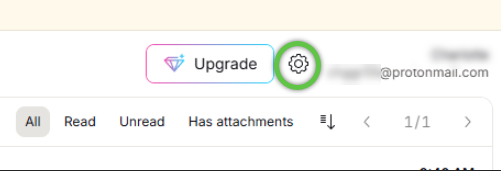
Once you're in the app, find the settings and we're going to make a few quick changes. As you're probably aware, on a browser it's in the right hand top corner with the gear icon
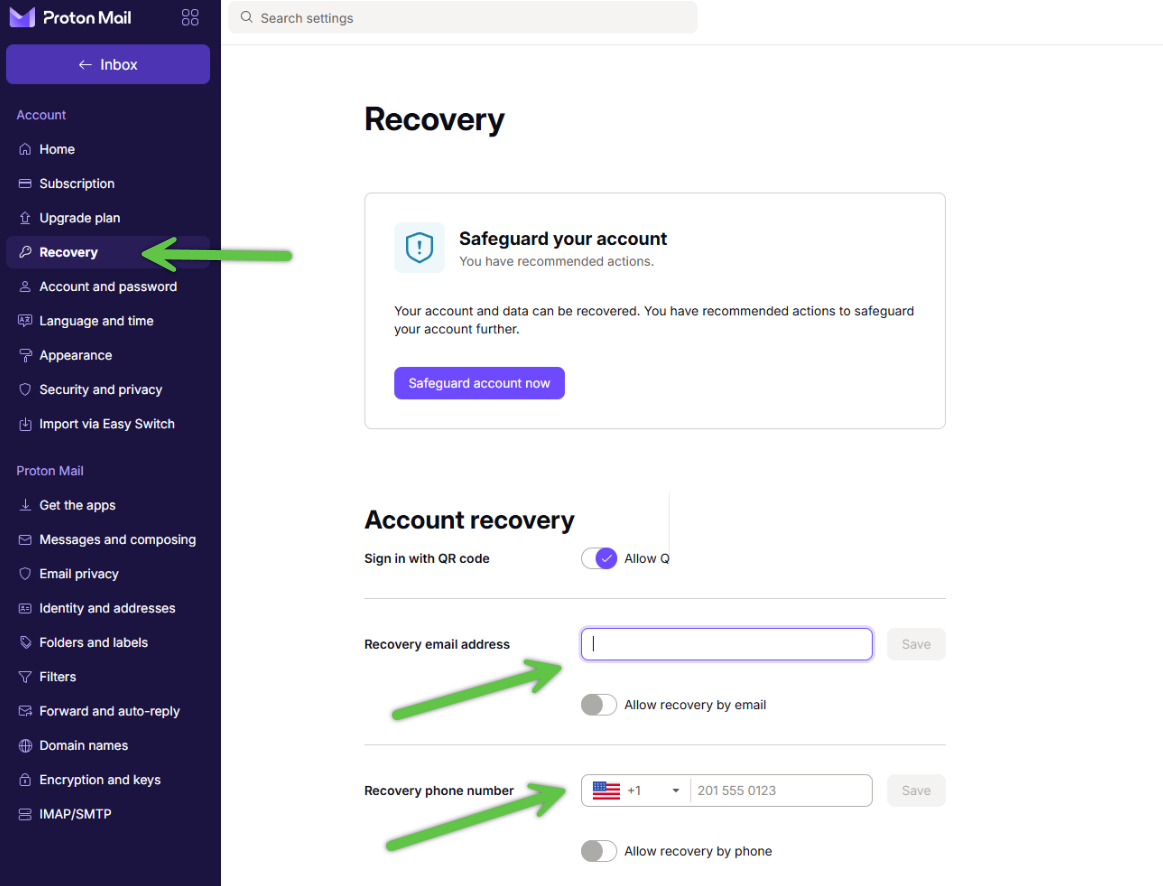
My first recommendation is to set up recovery email and/or mobile numbers. From the settings screen, click on "Recovery" then you can enter the option or options you want to use. (The email step is required if you want to get reminder emails when you receive email in Proton.)
Once you've set up your recovery email address, you can now set up your daily email alert as I showed you above:
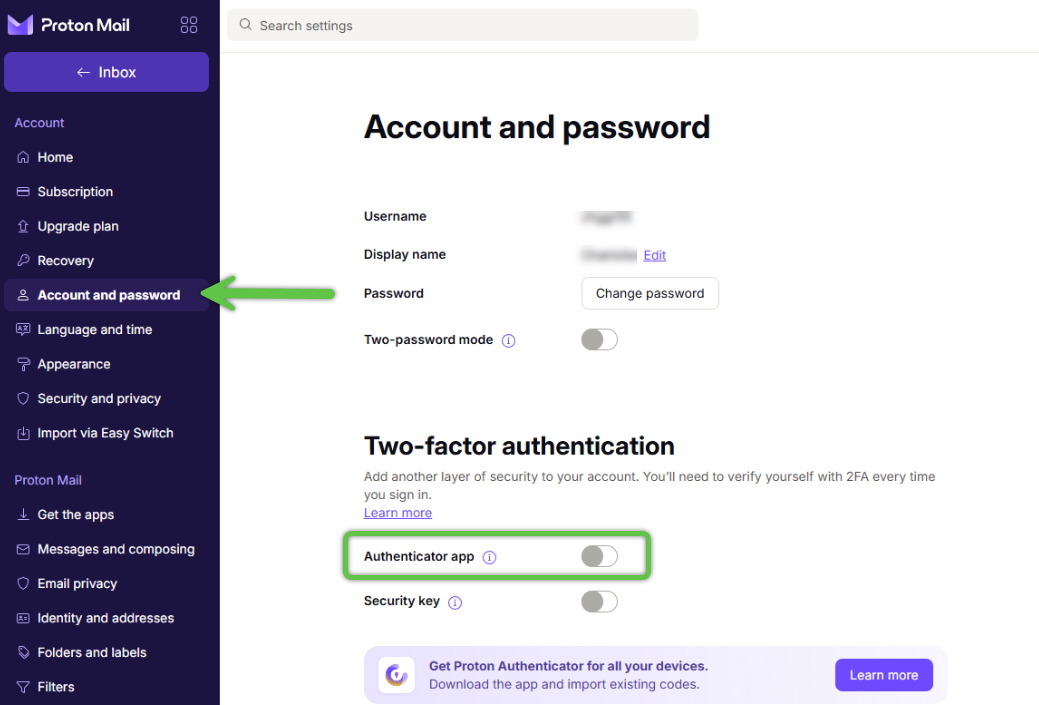
The other change I suggest for maximum security is to add two-factor authentication (2FA). You may already have a 2FA app, but there's a very clever way that Proton Pass (their password manager) integrates 2FA right in to the password manager as well, which I'll show you below:
Many websites have some version of 2FA you can use but a lot are still using text messages or emailed codes. For the highest level of security (and convenience, in my opinion) a stand-alone 2FA solution is preferable. This adds one more layer of security as now the three layers are:
- Who you are (user id/login)
- Something you know (your password)
- Something you have (your authenticator) - now this can be a 2FA app, phone (e.g. SMS), or a security key like a Yubikey
It's not unlikely that you're already using an authentication app such as Google Authenticator, but even if you are, I want to outline two potential ways you can incorporate 2FA into your security. Yes, text/SMS still is an option, but it's slow, manual, and less secure than standalone 2FA.
Option 1 - standalone app
I used Google Authenticator for years but I recently switched to the Proton Authenticator for convenience. Since I use my PC 95% of the time I'm doing anything that would require authentication, whenever I needed to enter a code I would have to find my phone, pull up the authenticator, find the site I'm using, and then read the code off the phone and enter it in the computer. Not awful, but I found a MUCH easier solution (for me).
The reason I switched to the Proton Authenticator is that it works on ALL platforms, and I can sync the codes between all my devices. So, now I can click on my the app in Windows, and Ctrl-V the code into the browser. Two quick steps and I don't have to walk around the house to find my phone.
Regardless of what authenticator you use, they function the same. So, how does it work? First, the website has to use a 2FA authentication token, and not all do. But if you have the option, the first step is to have the website generate a code for you. Here's an example from Best Buy's website:
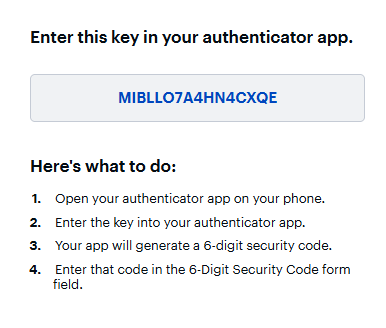
Then you open up the Authenticator app, click "add" and then paste that long code in to where it says "secret key". Then, that will generate a 6-digit code which you'll paste back in the website to confirm the link, and it's all set up! The next time you log in, you'll be asked for the 6-digit code which you grab from the app and you're done!
See more demos and download at https://proton.me/authenticator
And if you've installed an authenticator app, don't forget to update Proton's login to 2FA per the Step 1 instructions above.
Option 2 - integrate directly with Proton Pass
Before I get too far into this, these options only apply to paid versions of Proton Pass, so if you don't need or care to upgrade that's fine, the above option works swimmingly. And there are some pros and cons to this integration which I'll address below, but first here's how it works.
Just as the secret key works in the option above, there's a way to enter the secret key directly into your Proton Pass login and have that 2FA filled in each time without having to open a separate app. From the screen above, I'd copy the secret key, then I'd open up the website in Proton Pass and click on "edit" on the entry for this website.
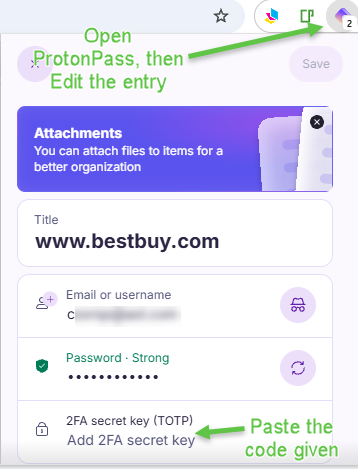
After I paste the key, that field reverts to the 6-digit 2FA code. But wait - it gets easier! Once you've integrated the secret key to the login, the next time you login and are prompted, Proton Pass will let you click and fill in the 2FA code! No extra app required!
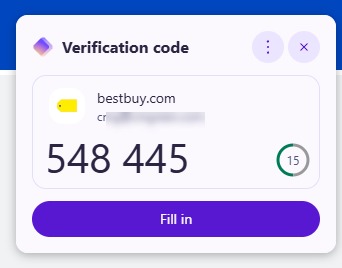
Ok, so this convenience has it's pros and cons. First, the con. Albeit minimal risk, it is a fact that now your password and 2FA code come from the same source. So it's not the same level of security as having a separate app for the code.
That being said, one huge pro is for instances where you might be sharing your vault with someone else who may need to log in from a different location. This could be game-changing from a convenience standpoint. It's frustrating when the code is a text message but the phone that's going to is in a different state. So this is a great use-case scenario that walks the line between extra security and convenience.
Again, this 2nd option is only for paid versions of Proton Pass, so if you're using the free version (which is still great!) you're out of luck on this.